A customer messages you: “Do you have the blue one in size 8?” Someone on your team scrolls the gallery, finds a photo, forwards it, types the price, then waits. Multiply that by forty chats on a sale day and the team spends its time hunting for pictures instead of closing orders.
A WhatsApp catalogue fixes the hunting part. Customers browse your products inside the chat, add what they want to a cart and send it to you as one message. But a catalogue that is thrown together with blurry photos and missing prices just moves the confusion somewhere else.
This guide covers how to set up a WhatsApp catalogue that people actually order from: how to structure it, what each product entry needs, which way to share products in a conversation, and what your team should do the moment a cart arrives.
How the catalogue works on the WhatsApp Business Platform
If you use an inbox tool built on the WhatsApp Business Platform (the API, not the free phone app), your catalogue lives in Meta, not inside WhatsApp itself. Meta’s catalogs overview describes it as a structured product inventory that sits in Meta and gets linked to your WhatsApp account, with each item carrying a name, description, price, images and availability.
You upload that inventory through Meta Commerce Manager or the Commerce API. One detail catches people out: Meta’s inventory upload guide says you can connect only one catalogue per WhatsApp account hierarchy, and every number in that hierarchy shares it. So if you run two brands with very different ranges, decide early whether they belong under one account at all.
Already sell on Facebook or Instagram Shops? You probably have a Meta catalogue. Connect that one rather than building a second copy you will forget to update.
The free WhatsApp Business app has its own simpler catalogue, and WhatsApp has been changing which ordering features the app offers. Check the current WhatsApp Help Center before you plan around app-only features.
Structure the catalogue before you upload anything
Most weak catalogues fail here, not on photos. People dump 300 items in the order they appear in the billing software, and the customer gives up after scrolling twenty.
Start from how your customers ask. A shoe brand gets asked by occasion and size. A building materials dealer gets asked by brand and application. A clinic selling packages gets asked by concern. Group items the way the question sounds.
A simple way to plan it:
| Decision | Good default | Why |
|---|---|---|
| Grouping | 5-10 collections that match customer questions | Easier to share one relevant group than the whole range |
| Variants | One item per sellable variant if price or stock differs | Avoids “is the 8 in stock?” follow-ups |
| What to leave out | Discontinued, rarely stocked or quote-only items | A dead item in the cart costs you trust |
| Owner | One named person updates it weekly | Catalogues drift the moment nobody owns them |
My honest advice: launch with your 30-60 best sellers, not everything. You can add the long tail later once you see what people actually request.
Write each product entry so it answers the next question
Every entry should remove one round of back-and-forth. Here is what we’d put in each:
- Name: what a customer would type. “Men’s running shoe, navy, size 8” beats “RN-204-NV”.
- Price: always show it if the price is fixed. A missing price almost guarantees a “how much?” message, and some people simply leave.
- Description: two or three lines covering size, material, what’s included and delivery time. Skip the marketing paragraph.
- Photos: a plain, well-lit main image, square, product filling most of the frame. Add a second photo showing scale or use.
- Link and code: add your website link and SKU if you have them. The SKU makes matching an order to stock far quicker.
- Availability: mark items out of stock instead of deleting and re-adding them.
Meta reviews catalogue items automatically and can flag items that break its commerce policies, according to the same overview page. Restricted categories such as some health products are where most rejections happen, so read the commerce policies before uploading anything borderline.
Choose the right way to share products in chat
Meta gives you several message formats, and picking the right one matters more than most teams realise. The overview lists catalogue messages, single product messages, multi-product messages and product carousels.
When to use each:
- Catalogue message: a customer asks “what do you have?” Send the whole catalogue thumbnail and let them browse.
- Single product message: they’ve asked about one item. Send that product with its image and price, never a forwarded photo.
- Multi-product message: they want options. Meta allows up to 30 products, organised into sections. Send six to ten that fit their budget or size rather than the full 30.
- Carousel: you’re running a broadcast or a launch and want a swipeable set of a few products.
Here is a worked example. A saree shop gets the message “Something in silk under ₹5,000 for a wedding.” The agent sends a multi-product message with two sections, “Kanjivaram” and “Soft silk”, four pieces each, all under budget. The customer adds two to the cart. That took one message from the shop, compared with eight forwarded photos and a price list.
Sending product messages outside a customer’s 24-hour reply window needs an approved template, so most of these work best as replies or as part of an opted-in campaign.
Handle the cart the moment it arrives
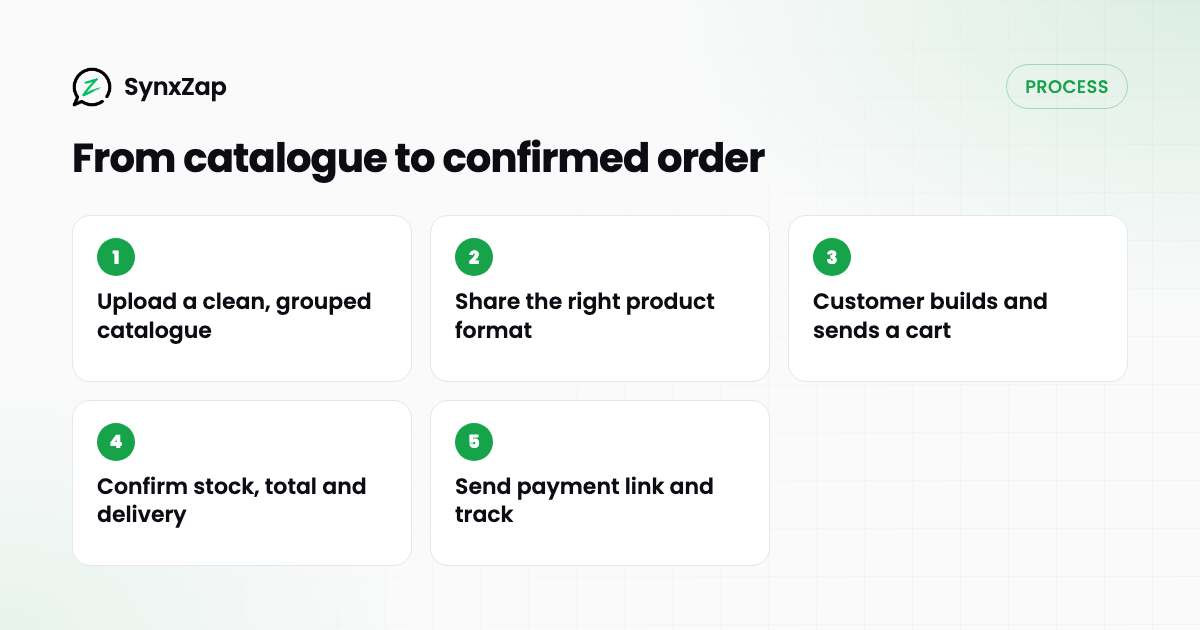
The cart is where WhatsApp ordering either feels slick or falls apart. When cart is turned on, customers can add several products and send them as a single order message, which reaches your system as a webhook notification. Meta notes that a sent cart cannot be edited, and you cannot send a cart to a customer yourself.
That second point shapes your process. If the customer wants to change something, they build a new cart, or your agent confirms the change in text. So set a clear routine:
- Acknowledge within minutes. “Got your order for 2 items, checking stock now.”
- Confirm stock and the final total, including delivery charges the catalogue didn’t show.
- Collect the address and delivery preference if you don’t have them.
- Send a payment link or confirm cash on delivery.
- Create the order in your store or billing system with the SKU, and share the order number.
Steps 1, 2 and 5 are the ones to automate first. An inbox that reads the cart, checks stock and replies with a total saves the most time on busy days. If a customer builds a cart and then goes quiet before paying, our guide to recovering abandoned carts on WhatsApp covers what to send and when.
Keep the catalogue honest after launch
A catalogue decays faster than a website. Prices change, stock runs out, and a festive collection stays up long after the festival.
A weekly 15-minute check keeps it working:
- Remove or mark out-of-stock anything that sold out this week.
- Check the five most-requested items still show the correct price.
- Look at which products were added to carts but rarely paid for. The price, photo or delivery time may be the problem.
- Ask the team which questions they still answered by hand. Each one is a hint about a missing detail in a product description.
Traffic matters too. A catalogue only gets used if people arrive in the chat in the first place, which usually means click-to-WhatsApp ads and a clear chat button on your product pages. If your site or ads aren’t sending that traffic yet, FYBB 360’s performance marketing team builds campaigns that open straight into a WhatsApp conversation.
Common questions
How many products should I put in my WhatsApp catalogue?
Start with your best sellers, typically 30-60 items, grouped into a few collections. A smaller catalogue with accurate prices converts better than a large one full of gaps. Add more once you see what customers request.
Can I use my Facebook or Instagram Shop catalogue for WhatsApp?
Yes. Meta’s documentation says an existing catalogue can be connected to your WhatsApp account for commerce. Keep one catalogue as the single source so prices and stock stay consistent across channels.
Does a customer’s cart mean they have paid?
No. A sent cart is an order request. You still need to confirm stock, give the final total and collect payment, either with a payment link or cash on delivery.
Make the catalogue part of your ordering flow
A good WhatsApp catalogue is less about the upload and more about what happens around it: tidy groups, entries that answer questions, the right product format for each chat, and a fast routine once a cart lands. Start with your best sellers this week and tighten it from there.
When you want carts to turn into confirmed orders automatically, with stock checks, totals and payment links in the same chat, see how SynxZap handles orders in chat.